Shiftmate
Technical service and repair tracking Excel template
Track the devices arriving for service, the responsible technician, repair stage and delivery date in a single Excel file. See overdue work.
Prepared by:Shiftmate Product and Operations Team · Son kontrol:
Actual file previews
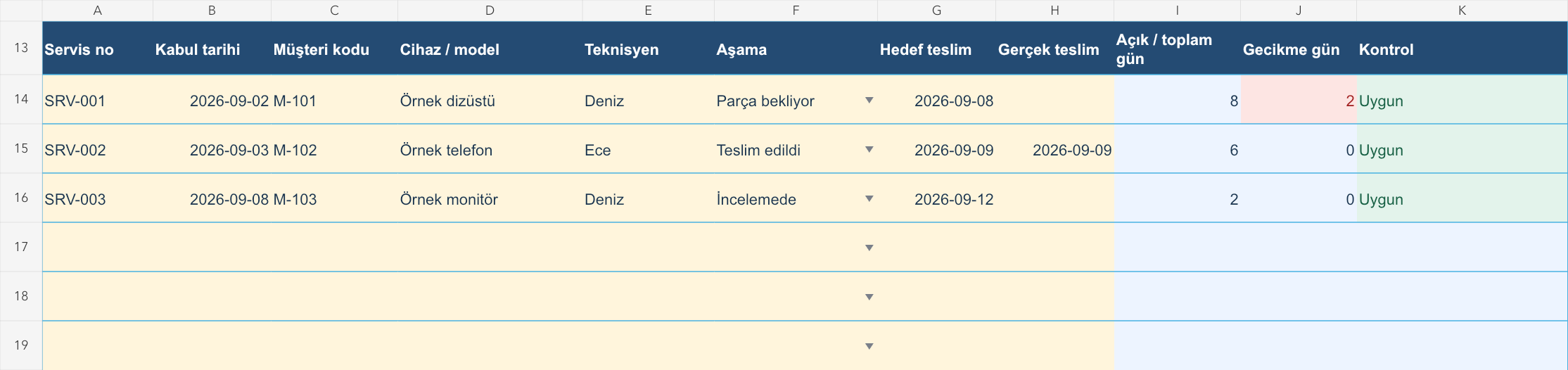
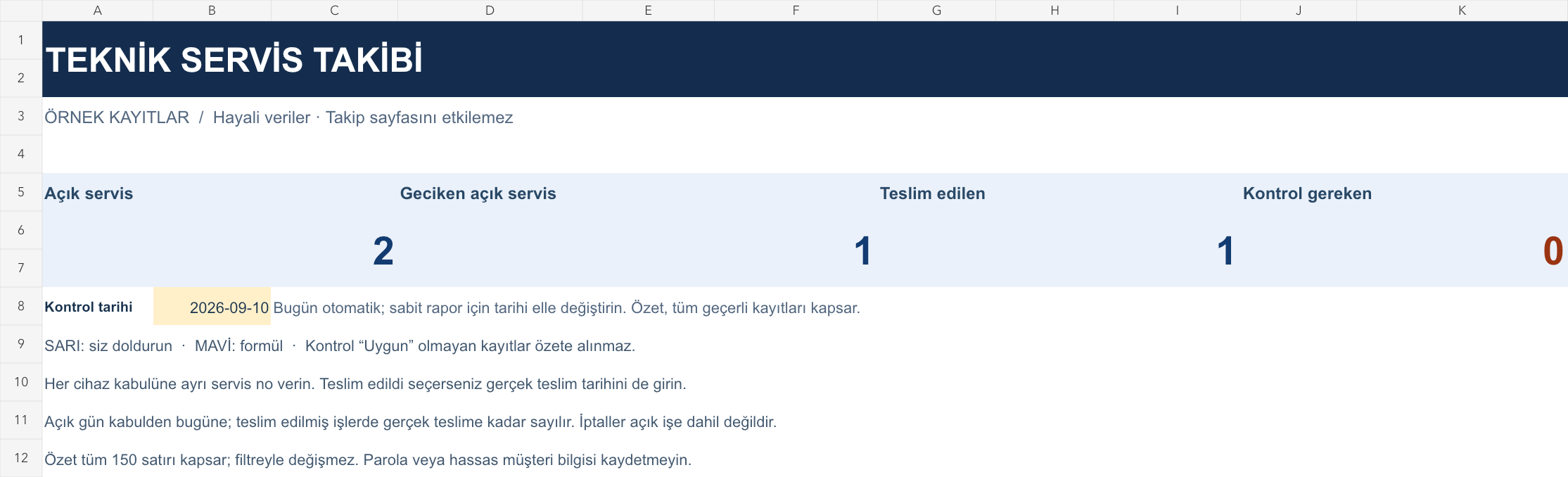
The images below are the actual data entry and executive summary pages of the workbook to be downloaded.
Step by step usage
Examine the example and prepare the blank file
Examine the Sample page first, write the actual records on the blank Tracking page. Assign a unique service number to each device admission. Enter the model and the necessary short reference in the device description, and the person who will follow up the work in the technician field. You can use the internal customer code instead of the customer name. Do not write your password, card information or private files on the device into this list. Yellow areas are input, blue areas are formula. The check date indicates today in the actual tracking; You can change the date when preparing a historical report.
Write actual records in the yellow fields
The number of open days is the calendar day difference between the acceptance date and the control date. For delivered works, the calculation stops on the actual delivery date. Delay occurs if the target delivery date has been exceeded; Same day delivery is not considered a delay. Canceled jobs are not included in the open job total. If the date order is incorrect, the same service number is repeated, or there is no delivery date when Delivered is selected, the Check column prompts you to review the record and leaves the relevant accounts blank. The top summary counts only valid records; It also shows the number of incorrect records.
Fix control alerts and review summary
Determine the daily search list by filtering overdue open jobs. Review devices awaiting parts with the technician. Complete the date of the delivered jobs and remove them from the open job list.
What does this Excel file solve?
Track the devices arriving for service, the responsible technician, repair stage and delivery date in a single Excel file. See overdue work. Examine the Sample page first, write the actual records on the blank Tracking page. Assign a unique service number to each device admission. Enter the model and the necessary short reference in the device description, and the person who will follow up the work in the technician field. You can use the internal customer code instead of the customer name. Do not write your password, card information or private files on the device into this list. Yellow areas are input, blue areas are formula. The check date indicates today in the actual tracking; You can change the date when preparing a historical report.
What's inside the file?
Device and service registration number, Technician and repair stage, Target delivery and delay calculation, Open job and data control summary. The file contains sample rows, canned formulas, data validation fields, risk colorings, and executive summary.
Calculation and control logic
The number of open days is the calendar day difference between the acceptance date and the control date. For delivered works, the calculation stops on the actual delivery date. Delay occurs if the target delivery date has been exceeded; Same day delivery is not considered a delay. Canceled jobs are not included in the open job total. If the date order is incorrect, the same service number is repeated, or there is no delivery date when Delivered is selected, the Check column prompts you to review the record and leaves the relevant accounts blank. The top summary counts only valid records; It also shows the number of incorrect records.
Worked example: Delivery tracking of device waiting for parts
Acceptance: September 2, 2026. Target delivery: September 8, 2026. Checked: September 10, 2026. Stage: Part awaiting. Result: The device has been on for 8 days and is 2 days late. The technician learns the part date from the supplier and gives updated delivery information to the customer; The file does not automatically send messages.
Decisions that can be taken as a result of this
Determine the daily search list by filtering overdue open jobs. Review devices awaiting parts with the technician. Complete the date of submitted jobs and remove them from the open job list
Common usage mistakes
Changing only the stage when the device is delivered, leaving the actual delivery date blank. Using the same service number for a customer's different devices. Making the delay invisible by changing formula columns manually
Limits and proper use
The file is not a warranty document, service contract or accounting record. It does not include parts stock, invoices, SMS and reading data from the device. The summary includes all valid records on the page, not filtered rows. When 150 records are filled, open a new period copy; Increasing capacity by adding rows requires updating formulas and summary ranges.
Compatibility and quality control
Two pages of this file were visually inspected; Formulas were recalculated and checked in empty, sample and incorrect entry scenarios. There was no separate device testing of the Excel desktop application. .xlsx without macro; formulas and drop-down lists are included in the file. The tracking page includes 150 preset record lines and a standalone Sample page. Prepared for desktop Excel; Check views and validations in other spreadsheet applications.
Scope of this file
This standalone Excel file organizes service records. There is no technical service, device repair or spare parts management in the Shiftmate application; The application focuses on employee shifts and timesheet.
Relevant official and technical resources
Frequently asked questions
How is this file different from the equipment maintenance list?
The maintenance list tracks your business' assets and periodic maintenance. In this file, the acceptance, repair phase and delivery process for each device received from the customer is a separate service record.
Will an automatic notification be sent to the technician or customer?
No. The Technician field records task ownership; does not send phone calls, emails or messages. You manage the communication by filtering the delayed work.
If the repair is completed but the device is not received, which step should I choose?
Select ready for delivery. Fill in the delivered stage and the actual delivery date only when the device is delivered to the customer; so that the open job is not closed early.