Shiftmate
Course student installment tracking Excel template
Track course fees by student and installment. Free Excel file that calculates partial payment, remaining installment amount and delay date.
Prepared by:Shiftmate Product and Operations Team · Son kontrol:
Actual file previews
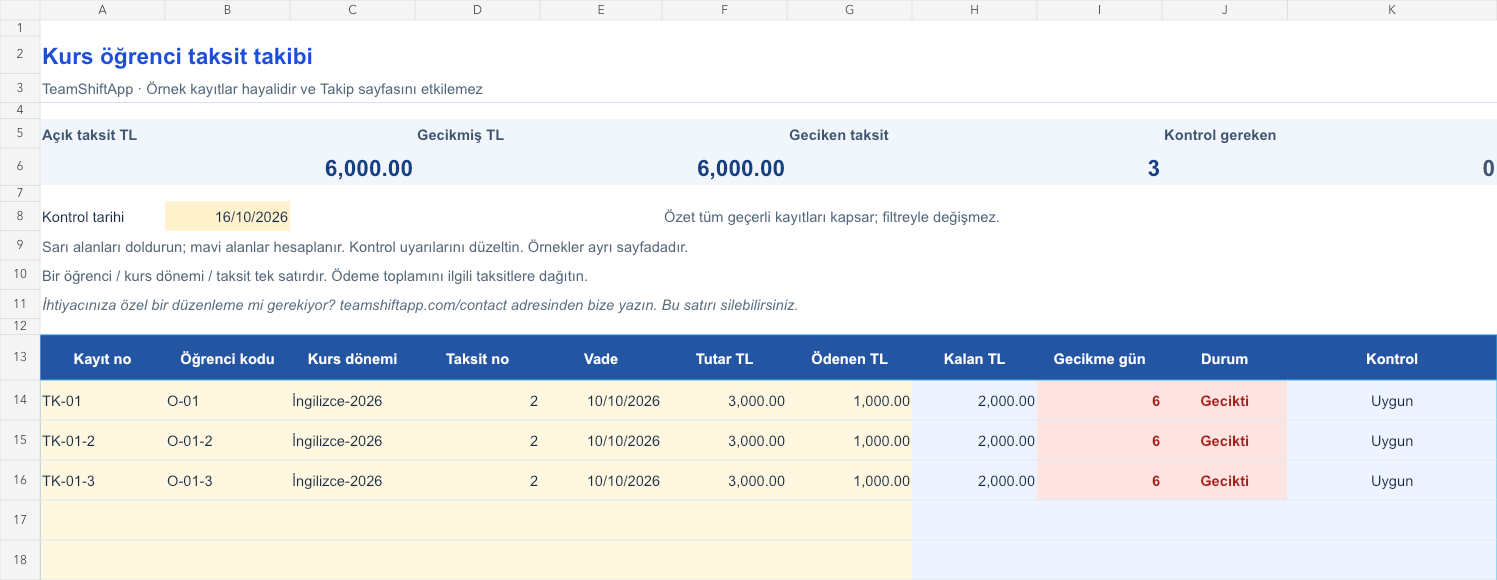
The images below are the actual data entry and executive summary pages of the workbook to be downloaded.

Step by step usage
Examine the example and prepare the blank file
Open a record for each student, course and installment. Type the student code the same throughout the semester. Enter the installment number as a whole number, such as 1, 2, 3. If a single payment covers two installments, distribute the amount among the relevant lines. The file checks for repetition of the same student-course-installment combination. Use the yellow input fields on the tracking page; Do not change the blue formula fields. The sample sheet is filled with fictitious records and does not count towards the actual work total.
Write actual records in the yellow fields
The remaining installment amount is the expected minus the cumulative payment. Delay in open installment is the number of days beyond the due date of the control date. The maturity date itself is not considered a delay. Overpayment will generate a negative amount and a re-enrollment check alert. The summary shows the total open amount, overdue amount and number of overdue installments; It does not show the number of students. An empty mandatory field is distinguished from a real zero. Correct missing or incorrect records in the control column; Since these lines are excluded from the summary, do not use the total as a final report until the problem is resolved.
Fix control alerts and review summary
Compare overdue installments with receipts. Allocate the partial payment over the correct period.
What does this Excel file solve?
Track course fees by student and installment. Free Excel file that calculates partial payment, remaining installment amount and delay date. Open a record for each student, course and installment. Type the student code the same throughout the semester. Enter the installment number as a whole number, such as 1, 2, 3. If a single payment covers two installments, distribute the amount among the relevant lines. The file checks for repetition of the same student-course-installment combination. Use the yellow input fields on the tracking page; Do not change the blue formula fields. The sample sheet is filled with fictitious records and does not count towards the actual work total.
What's inside the file?
Open installment amount, Overdue date, Paid / pending status. The file contains sample rows, canned formulas, data validation fields, risk colorings, and executive summary.
Calculation and control logic
The remaining installment amount is the expected minus the cumulative payment. Delay in open installment is the number of days beyond the due date of the control date. The maturity date itself is not considered a delay. Overpayment will generate a negative amount and a re-enrollment check alert. The summary shows the total open amount, overdue amount and number of overdue installments; It does not show the number of students. An empty mandatory field is distinguished from a real zero. Correct missing or incorrect records in the control column; Since these lines are excluded from the summary, do not use the total as a final report until the problem is resolved.
Worked example: Course student installment tracking: calculation example
Student O-01, course English. 2nd installment: 3,000 TL. Maturity October 10, paid 1,000 TL; check 16 October. Result: The remaining amount is 2,000 TL and the delay is 6 days.
Decisions that can be taken as a result of this
Compare overdue installments with receipts. Allocate partial payment to the correct period
Common usage mistakes
Showing the same payment in full amount in two installments. Reusing the old course code in the new course term. Using the summary total as the final result without correcting the lines with control warnings
Limits and proper use
The student information system is not an attendance or educational evaluation tool. It does not calculate delay interest. Use only necessary codes; Do not record identity, child or parent information unnecessarily. The file is prepared for 150 record lines. The parent summary includes all valid rows, regardless of filters. When capacity is full, open a new period copy; additional rows require the summary and validation ranges to be updated as well. There are no macros, external data connections or automatic notifications.
Compatibility and quality control
Two pages of this file were visually inspected; Formulas were recalculated and checked in empty, sample and incorrect entry scenarios. There was no separate device testing of the Excel desktop application. .xlsx without macro; formulas and drop-down lists are included in the file. The tracking page includes 150 preset record lines and a standalone Sample page. Prepared for desktop Excel; Check views and validations in other spreadsheet applications.
Scope of this file
This independent file has been prepared for course student installment tracking. It's not that Shiftmate automates this industry workflow; The application focuses on team, shift and timesheet management.
Relevant official and technical resources
Frequently asked questions
What is written when a partial payment is made?
Write down the total payment of the relevant installment so far. The final receipt amount alone does not replace the cumulative payment.
Can a single student take more than one course?
Yes. Use a separate course code for each course period and open the installments under that code.
Is a late penalty added?
No. The file shows only the calendar day and open amount; It does not impose interest or contractual sanctions.
Do I need to create an account to download the file?
No. You can download the Excel file directly after creating a download request with your email address. Creating a workspace is not mandatory. If there is an area that does not meet your needs, you can request an edit via the contact form.